twcl

Participant Setup

Before recording letter deliveries, each volunteer or worker must register their contact details once.

How to add your Name & Phone Number

1Click on the ๐Ÿ‘ฅ Participants tab in the main navigation menu at the top.

2Locate the Add participant form on the left side.

3Enter your Name in the Name field.

4Enter your Phone / Contact Number (optional, but helpful for coordination).

5Click the blue ๏ผ‹ Add Participant button to save your profile. And you are registered, now you can see your name on the list
Quick Entry Guide

Follow these steps every time you finish delivering letters in a zone or street.

Step-by-Step Delivery Entry

1Go to the ๐Ÿ“ฅ Log Progress tab on the top menu.

2Person Name: Enter your name.

3Week: Select the week you are working on (e.g., Week 1, Week 2).

4Route: Enter the Week code where you distributed letters. It could be 1A, 1B, 2A, 2B, etc.

5Letters Delivered: Type the exact numerical count of letters delivered (e.g. 120).

6Mark: Mark Route as DONE only if complete.

7Click ๐Ÿ’พ Save Delivery Log to register your numbers instantly.

Managing Zones & Streets

Organize target areas before sending out teams.

How to add a Zone

1Click on the ๐Ÿ“ Zones menu item.

2Select the Week Number for this zone.

3Enter a Zone Code (e.g. G, Z1, NORTH).

4Add a descriptive Zone Name (e.g. "Main Market Area").

5Click ๏ผ‹ Add Zone.

How to add and complete Streets

1Click on the ๐Ÿ›ฃ Streets tab.

2Choose the Week, select the target Zone, and enter the Street Name.

3Click ๏ผ‹ Add Street.

4When distribution on a street is complete, click the Mark done button next to its row to change its status to Completed.

Understanding Campaign Stats

How to choose the right Week to inspect

Click on ๐Ÿ“Š Dashboard to view overall campaign health, or click directly on any individual week button (e.g. Week 1 Planner) in the top tabs or dashboard grid to view that specific week's map, zone distribution, and daily breakdown.

Viewing Reports & Delivery Records

Navigate to ๐Ÿ“‹ Reports to see every logged delivery in chronological order. You can view date/time stamps, participant names, week, day, zone, street, and quantities delivered, or print a copy using the ๐Ÿ–จ Print button.

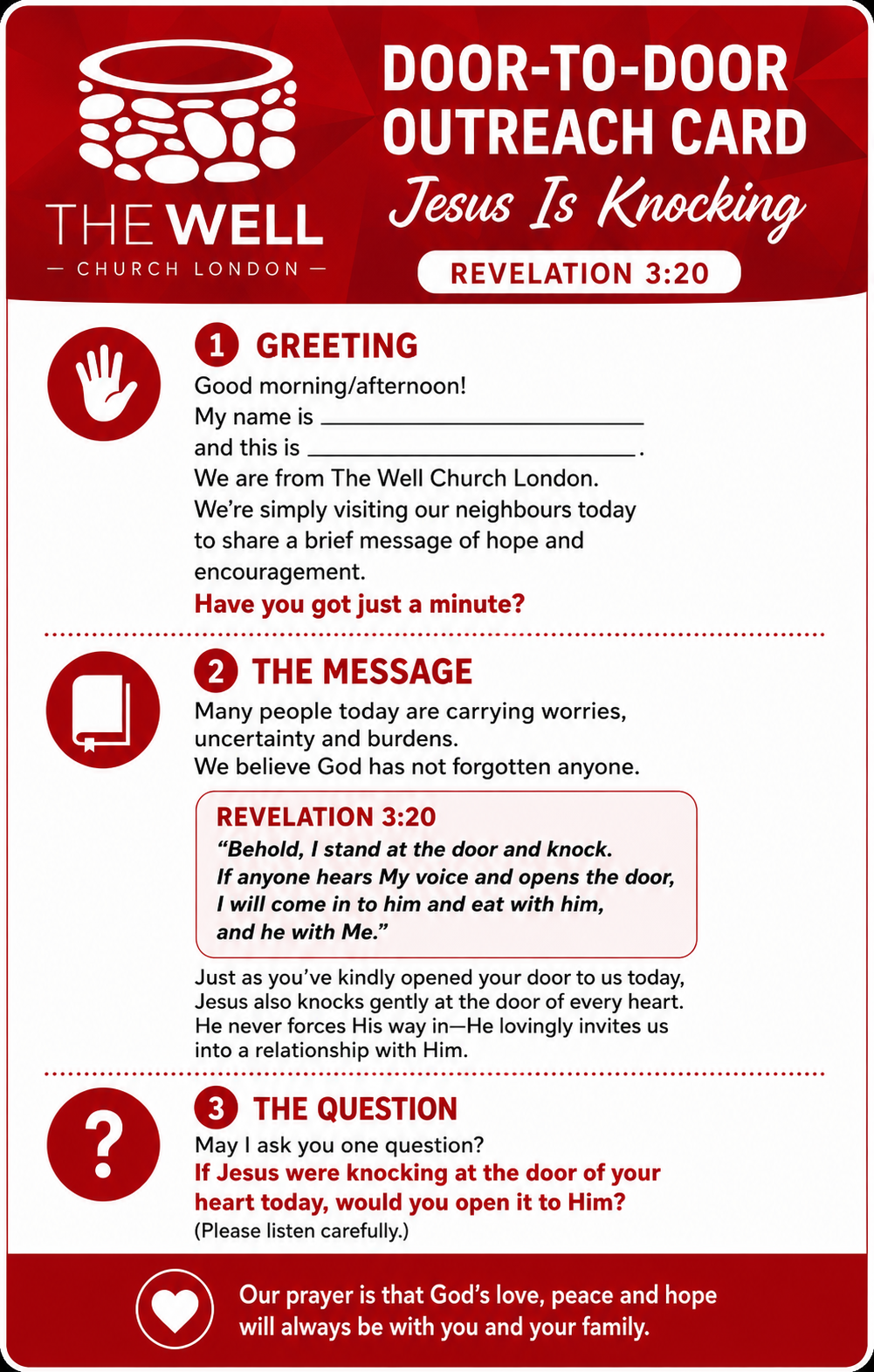
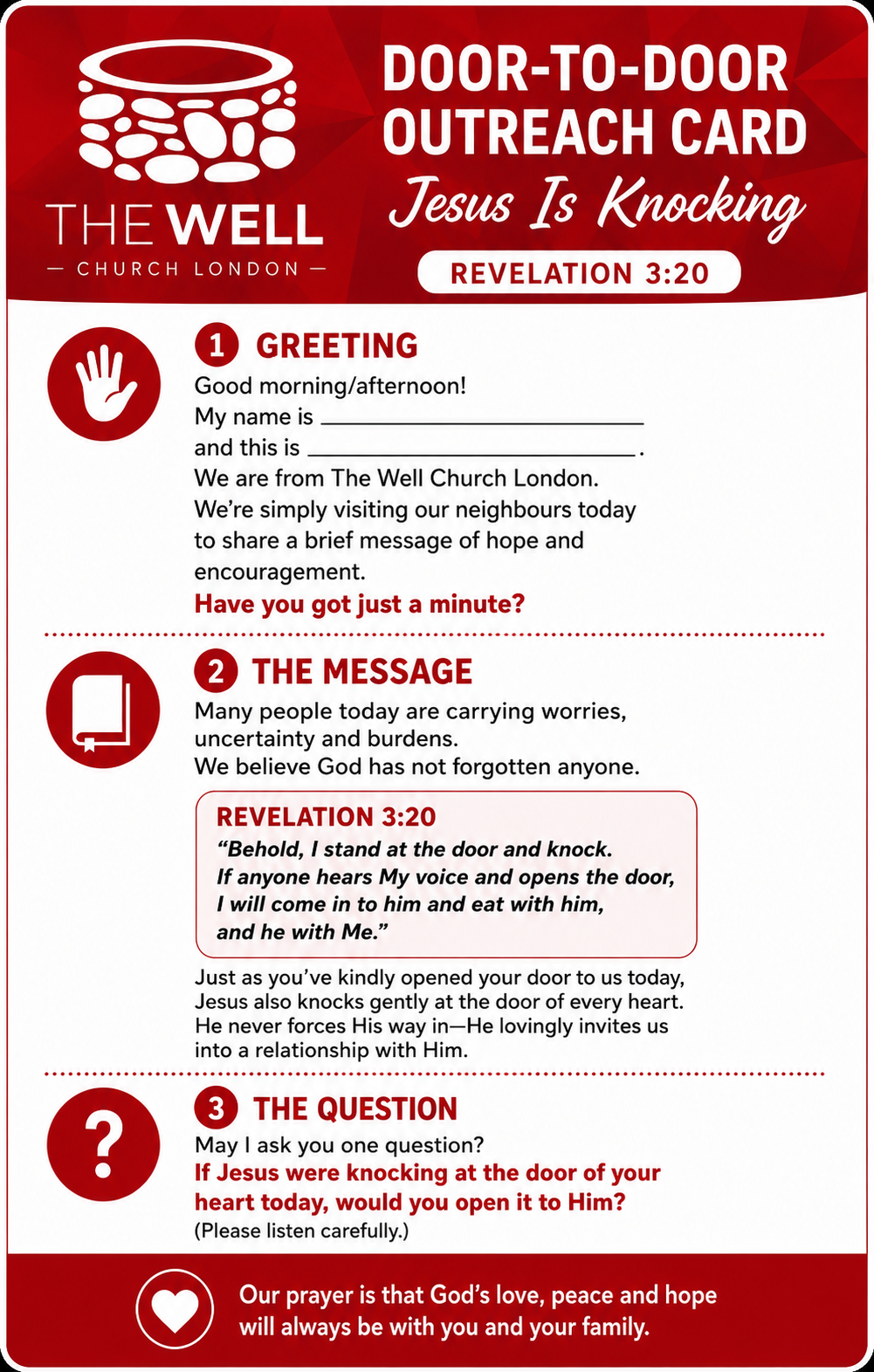
THIS IS YOUR TRAINING CARD

Click here and Read your training card and be ready.

Logo

Click here and Read your helping scriptures.

Logo